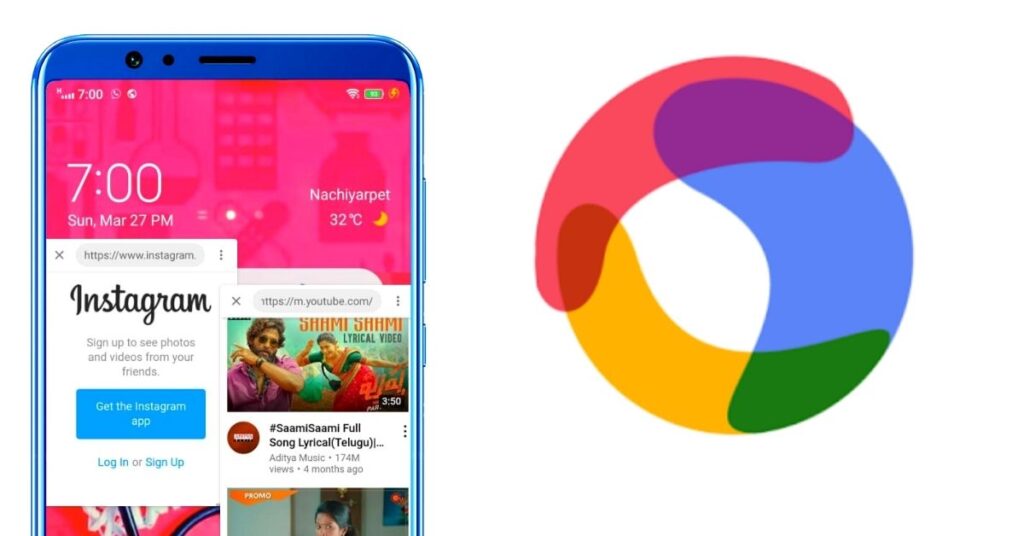
Float Browser is an Android app designed to display web pages in a movable floating window. This can be useful when you want to keep a reference page visible while working in another app.
For example, you might keep instructions open while writing notes or refer to a webpage while preparing a message. A floating browser displays web content; it does not automatically turn every installed app into a floating window.
This guide covers the app’s listed features and practical checks before use. It is based on published information, not a hands-on test on every Android device.
Why do I need the Float Browser app?
Mobile is a tool that helps to do many things, as well as a tool to do many things at once, We spend time on many social media, searching and reading many good things on websites, but can not do two or three jobs at once, but one that makes it possible The Float Browser application that offers the opportunity is given below in the article so that you can do a lot of work on your mobile at the same time.
Best floating apps for Android
It’s so beautiful to look at, it’s surprising to others, and it’s quick to get the job done, the full details of which are given below in our web article, you can read all of them clearly. We have taken it from the Play Store. You can also confirm that. Simple to look at, easy to use, but helpful in many ways, this is the highlight
Note: After reading all the information given below, you can download and use it only if you wish.
plat store details of floating apps for Android
| Detail | Information |
|---|---|
| App name | Float Browser – Video Player |
| Developer shown on Google Play | goyourfly |
| Android package ID | com.xpp.floatbrowser |
| Downloads shown | 500K+ |
| Advertising | Contains ads |
| Last app update shown | 1 July 2026 |
| Official listing | View Float Browser on Google Play |
Store details can change. Check Google Play on your device for current availability and compatibility.
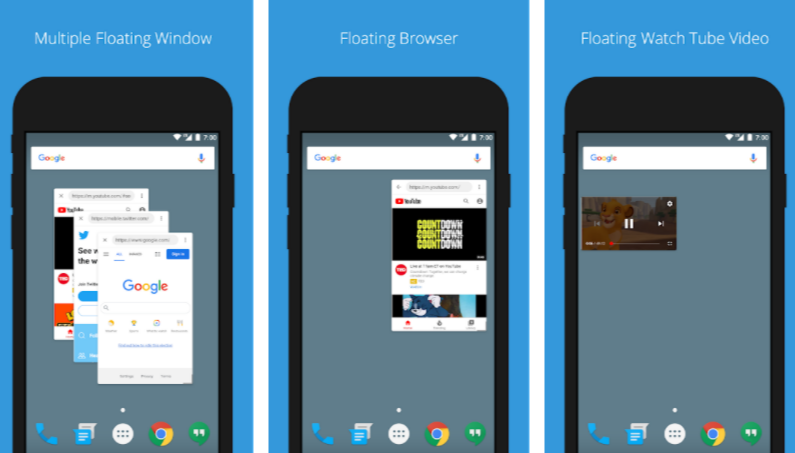
Float Browser is a very cool app that Lets you browse the Web in Floating Window, and watch Tube Video Floating Windows.
Float Browser Features and Window Controls
Float Browser’s Google Play description lists floating web browsing, video playback, page zoom and window controls. You can move, resize or minimize the browser window while using your phone.
The developer describes these controls:
- Move: Drag the window’s top bar to another position.
- Minimize: Move the window towards the left or right edge.
- Close: Move the window towards the bottom of the screen.
- Resize: Drag the bottom-right corner to make it larger or smaller.
- Open the menu: Tap the menu at the upper-right corner.
These instructions are based on the developer’s description. Controls may differ depending on the app version.
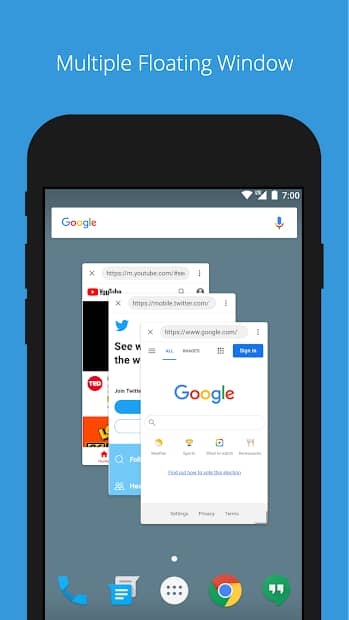
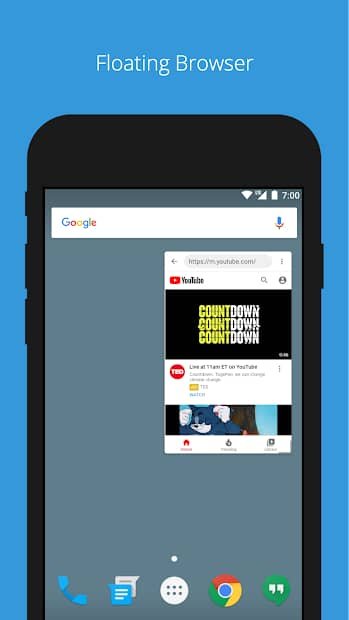
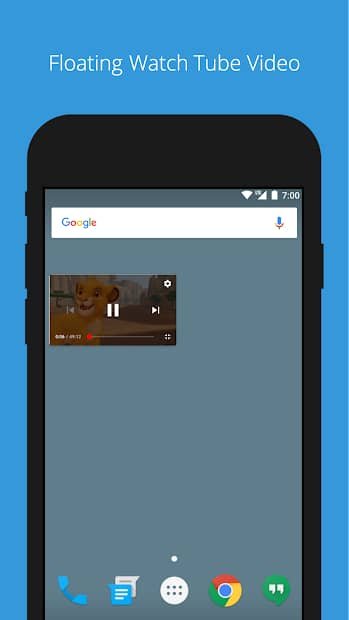
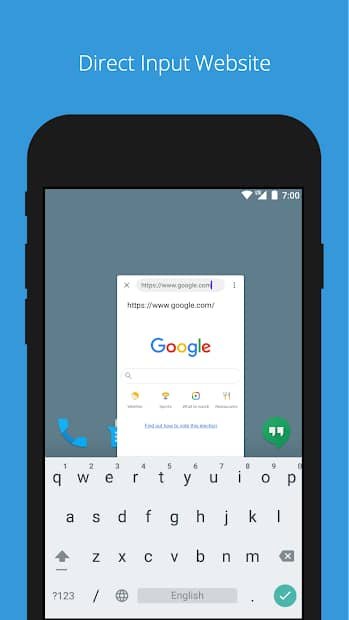
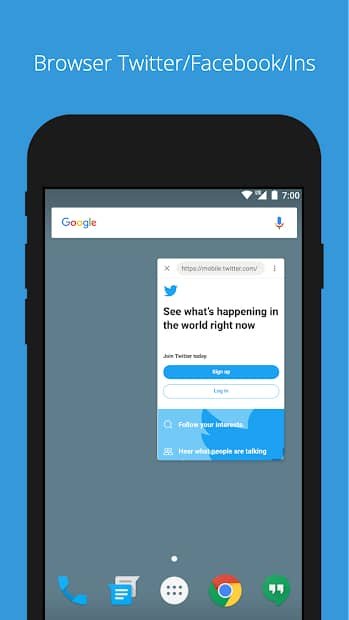
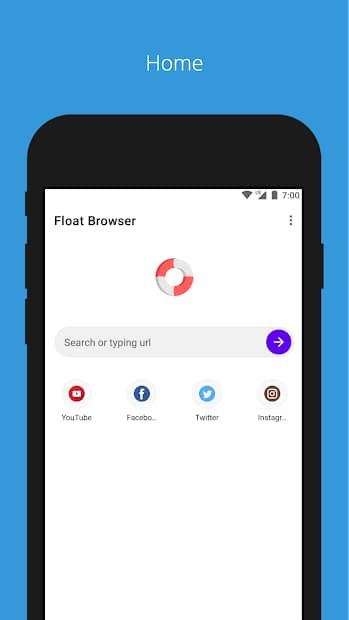
how to install, and use the float Screen app?
- Click on the link below if you have the option to download the application
- Once the application is installed on the mobile, a separate screen will open in the same place to touch any subject like Instagram, Facebook, etc. You can do many things at once.
The main purpose of this website article is not only to provide great help to all mobile users but also to offer a collection of many good applications like the one we recommended today, all of which were created as per Google’s recommendation and are featured in the Play Store, so you can definitely check out the other articles on this website as well. Can also recommend it to your friends.
How to Get Started With Float Browser
- Open the Google Play link above and check that the package is com.xpp.floatbrowser.
- Review the listing, recent feedback and Data safety information.
- If Google Play offers installation for your device, install and open the app.
- Follow its on-screen setup instructions. If it requests permission to appear over other apps, read the request before deciding whether to allow it.
- Start with a public webpage that does not require a login.
- Try moving and resizing the window, then switch to another app to check how it behaves on your phone.
Do not assume that a website working in your normal browser will behave identically in a floating window.
What if the Floating Window Does Not Work?
If no window appears, revisit the app’s setup instructions and any permission request you declined. Menu names vary by Android version and phone brand.
If a page fails to load, try the same address in your usual browser. This helps you distinguish a website or connection problem from an issue limited to Float Browser.
If video playback pauses or fails, try the service’s official app or website. Avoid repeatedly changing unrelated phone settings to force playback.
Can Float Browser make Instagram or other apps float?
A floating browser opens webpages. Opening Instagram’s website is different from turning the installed Instagram app into a floating window.
What if the Floating Window Does Not Work?
If no window appears, revisit the app’s setup instructions and any permission request you declined. Menu names vary by Android version and phone brand.
If a page fails to load, try the same address in your usual browser. This helps you distinguish a website or connection problem from an issue limited to Float Browser.
If video playback pauses or fails, try the service’s official app or website. Avoid repeatedly changing unrelated phone settings to force playback.
Does it guarantee YouTube playback?
No. Do not assume uninterrupted playback, background audio or compatibility with every video. Check how your current version behaves and use the service’s official app when needed.
Does floating browsing make my phone faster?
Not necessarily. Keeping another window active adds work for your device. Close it when you no longer need it, especially if you notice lag or increased battery use.
What if Google Play does not offer installation?
Read the message shown by Google Play. Availability and compatibility can differ. Do not assume that an APK from another website will solve the problem.
Which permissions should I allow?
Read each permission request and consider whether it is needed for the feature you want. Check the current privacy policy and Google Play Data safety section before entering personal information.

1 thought on “Float Browser for Android: Features, Setup and Limitations”