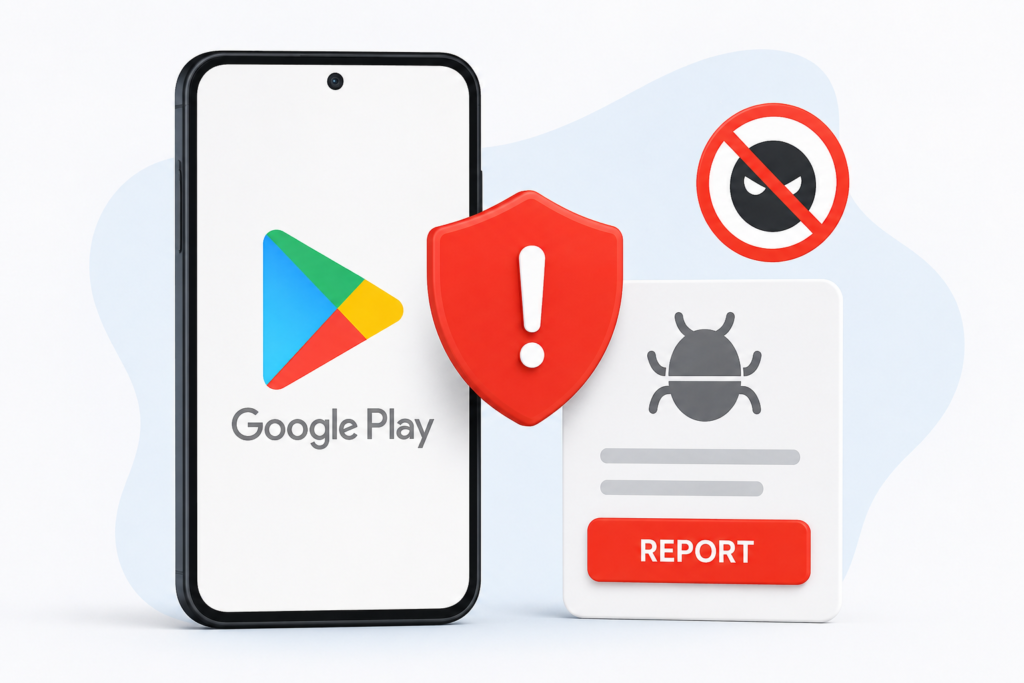
To flag an app on Android, open its Google Play listing, tap More → Flag as inappropriate, select the reason and submit. Use the report for the issue you actually observed. A crash, an unwanted charge and suspected malware can require different follow-up actions.
Reporting helps Google review a concern. It does not automatically remove the app, recover a payment or secure a device that is already affected. This guide separates those tasks so you can take the useful next step without waiting for a reporting outcome.
Choose the right route
| Your concern | Useful starting point |
|---|---|
| Suspected app policy violation | Flag the listing or use Google’s policy-report form |
| Inappropriate user review | Flag that specific review |
| Purchase or refund problem | Google Play purchase/refund help |
| Potentially harmful installed app | Play Protect and device-security steps |
| Ordinary app malfunction | Developer support with reproducible details |
Report the app through Google Play
Open the Google Play app and locate the exact app or game. On its details page, open the three-dot More menu, choose Flag as inappropriate, select the relevant reason and tap Submit. Google documents this sequence in its app and review reporting instructions.
Check the developer name before reporting. Several products can share similar names, and a copied icon can lead you to the wrong listing. If your concern is about a particular version, note its version number and the date you saw the issue.
For example, “the app closes when I select Export” describes a malfunction. “The listing promises an export without payment, but that action immediately demands payment” describes a different concern. Report the facts without adding conclusions you cannot support.
Use the official policy-report form when needed
Google also provides a policy-violation report form. It asks for the package name and relevant policy category. In a Play listing address, the package follows id=; it identifies the app more precisely than its display name.
The form warns against inaccurate, unsupported or repeated allegations. Read its current requirements and provide an honest account. Use the separate legal-removal route for a rights-related complaint, following the requirements shown there. A normal bug report should go to developer support instead.
Prepare a concise, useful report
- Save the exact listing link and developer name.
- Describe what happened, what you expected and the steps that produced the issue.
- Include the date, app version and device details where relevant.
- Use screenshots that show the problem; cover unrelated private information.
- State what you directly observed separately from what you suspect.
Do not include passwords, login codes, payment PINs or complete bank statements in a public review. If an official form requests supporting material, check why it is needed and remove information unrelated to the complaint. Keep your own copy of what you submitted.
A useful example is: “After selecting the three-day trial on this screen, I was shown this recurring amount. The introductory screen did not display that amount.” Attach the relevant screens if the reporting route allows it. This is an illustration of clear reporting, not an allegation about a particular app.
Report a review or developer reply
In the Google Play app, find the specific review, open its More menu and choose Flag as inappropriate. A public review and a policy report have different purposes: reviews describe your experience for other users, while flags request review of a concern.
Google says public reviews show your Google account name and image. Do not assume that leaving a review is anonymous. For an inappropriate developer response, Google’s reporting help describes the “Report developer reply” link in the response email and its policy form.
If the app may be harming your phone
Open Google Play → profile icon → Play Protect and review its status. Keep scanning enabled. Google explains that Play Protect checks apps for harmful behaviour and may warn about, disable or remove harmful apps.
A clean result does not verify every marketing claim, subscription condition or earning promise. Stop entering sensitive information into an app you distrust. If you exposed an account password, use the genuine service’s security controls; if a payment account is affected, contact its provider through an official route.
Refunds and subscriptions need separate attention
A policy report is not a refund request. Use Google Play’s refund guidance for an eligible purchase and review the account used to pay. Keep the order reference for support. The applicable outcome depends on the purchase and policy; a report does not guarantee reimbursement.
Check recurring billing separately before leaving an app. If another company bills the subscription, use that provider’s controls. Keep confirmation of any cancellation rather than assuming an uninstall stops payments.
How to Uninstall an App You No Longer Want
Preserve any files or account records you need first. For a vault app, restore hidden files and verify that they open outside the vault before uninstalling. Then open Android Settings → Apps, select the app and choose Uninstall. Menu labels can vary by phone. Removing an app is separate from reporting it or deleting its online account.
Common questions
Will Google reply? Its reporting instructions say individual responses may not be provided. Keep any confirmation you receive, but do not rely on a promised response deadline.
Does one report guarantee removal? No. A submission asks for review; this guide cannot predict Google’s decision.
Should I keep submitting the same complaint? Provide one clear, supportable account through the appropriate route. Add new evidence through an available follow-up process rather than sending repeated unsupported submissions.
Reader recommendation: identify the exact app, document the issue and use the route matching your problem. Deal with device security and billing promptly as separate tasks.
More Articles You May Like




2 thoughts on “How to Report Unsafe Apps on Google Play”