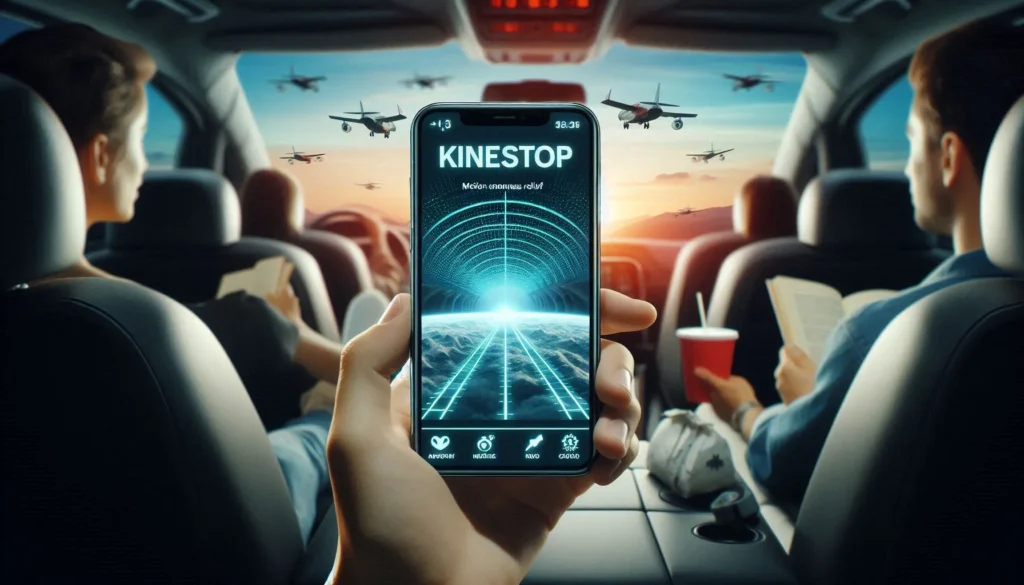
KineStop: Car sickness aid is an Android app by Petr Nálevka (Urbandroid). It displays an artificial horizon over your screen, which the developer describes as a way to help with motion sickness. It is an optional aid, not a guaranteed cure or a reason to keep looking at your phone when you feel unwell.
View KineStop on Google Play. The current listing includes in-app purchases. Check your own device’s compatibility and the price of any optional upgrade before installing or paying.
What KineStop does
The app draws motion cues while another app is visible. The developer says its Accessibility service can extend those cues across areas such as system bars and notifications. These are descriptions of how the app is intended to work; we have not clinically evaluated it or independently verified a guaranteed response time.
Motion sickness can involve a mismatch between the motion sensed by your inner ear and what your eyes see. The NHS motion-sickness guide explains this and recommends avoiding reading, films and electronic devices when managing symptoms. An overlay should not take priority over how you actually feel.
How to try KineStop as a passenger
- Open the linked Play Store listing and confirm the app name and developer.
- Read the setup instructions while the vehicle is stationary. Review each requested permission instead of approving every request automatically.
- Activate the motion cues using the controls in your installed version. Check that you can also stop them easily.
- If you choose to try it during a journey, do so as a passenger. Keep the screen session brief and pay attention to any discomfort.
- Stop using the screen if you feel sick, dizzy or worse. Do not keep testing to meet a promised number of minutes.
Do not operate the app while driving. A passenger aid should not distract the person responsible for controlling the vehicle.
Permissions, privacy and troubleshooting
Read the linked Urbandroid privacy policy and the store’s Data safety disclosure. The developer states that the Accessibility service is used for drawing motion cues and does not collect personal information through that service. A developer disclosure is useful information, not an independent security certification.
If the overlay disappears, check whether your phone is restricting KineStop in the background and consult the developer’s instructions for your device. Change only the relevant app setting if necessary; do not broadly disable phone security features. If the overlay gets in the way of another app, stop it before continuing.
Other ways to manage travel discomfort
The NHS suggests looking forward at a fixed point such as the horizon, getting fresh air where possible, and taking breaks on long journeys. For children, talking, singing or listening to music can provide a distraction without a screen. A pharmacist can advise on suitable motion-sickness remedies for you or your child. Seek medical advice if symptoms persist outside travel or are otherwise concerning.
We do not describe KineStop as proven safe and effective for every age group. An app-store age rating and a medication-free design do not establish medical suitability for every person.
Is there an iPhone option?
Apple provides Vehicle Motion Cues on supported iPhone software. Look under Settings → Accessibility → Motion → Vehicle Motion Cues. Apple describes it as a feature that may help passengers; it is separate from KineStop and should not be used while operating a moving vehicle.
This is an app setup guide based on the linked developer, Apple and NHS information. It is not a medical diagnosis or a hands-on effectiveness review.
How to Uninstall KineStop
Stop the motion-cue overlay before removing the app. In Google Play, use profile → Manage apps & devices → Manage, select KineStop, then Uninstall. On iPhone, Vehicle Motion Cues is a separate built-in setting: turn it off in the Motion settings described above.
More Articles You May Like