E2PDF separates readable PDF exports from backups used for restoration. If you want to move SMS or call history to another Android phone, keep the supported XML backup; do not assume a PDF report can be imported back into the messaging app.
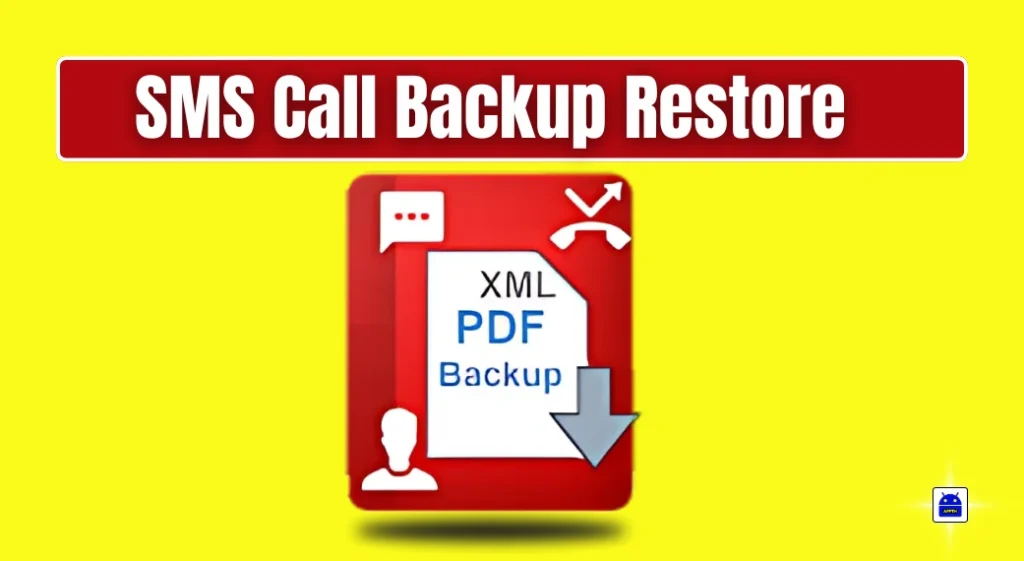
The Android listing is E2PDF SMS Call Backup Restore by Day Dreamer LLC, package com.tekxperiastudios.pdfexporter. It contains ads and in-app purchases. This guide describes its published functions, without claiming a hands-on restore test.
Quick Overview
| App | E2PDF SMS Call Backup Restore |
| Platform and publisher | Android; Day Dreamer LLC |
| Readable records | PDF reports |
| SMS and call-log restoration | Keep the supported XML backup |
| Main precaution | Check exported copies before deleting data or replacing the phone |
Reader Recommendation: Keep Both Types When Needed
If you only need to read a conversation later, a PDF may be convenient. If your purpose is moving records to another phone, focus on the restorable backup first. Keep a readable report as an additional reference when useful. Name files with the date and the kind of data they contain so you do not confuse an older export with the latest backup.
For example, if you are preserving a delivery discussion, inspect the relevant dates and sender details in the report. If you are preparing for a phone replacement, keep the original device until you have checked the restored result. These are practical verification steps, not a claim that every message type or Android version is supported.
PDF and XML Have Different Purposes
- PDF: a readable report for viewing, printing or sharing selected messages, call records, contacts or statistics.
- XML: the developer’s privacy documentation describes creating and restoring SMS and call-log backups in this format.
A PDF that opens correctly proves you can read that report. It does not prove that the app can rebuild your phone’s SMS database from it. Keep the original restore file alongside any PDF you create for reading.
What the Developer Currently Describes
The listing describes SMS and call-log backup/restore, contact exports and call or message statistics. Its recent release notes also mention WhatsApp chat PDF reports. That is a reporting feature, not evidence that E2PDF replaces WhatsApp’s own chat-restoration process.
This guide does not promise MMS attachment support, scheduled automatic backups, encrypted export files or OneDrive integration unless you can confirm those features in the version you are using. Check which records and attachments appear in the output before relying on it.
A Practical Backup Workflow
- Decide whether you need a readable record, a restorable backup, or both.
- Open the official app and choose the relevant data category. Review the requested access before granting it.
- Select the conversation, contact, date range or records you intend to preserve.
- Create the appropriate export or backup. Give it a recognizable filename and save it in a location you can find.
- Open a PDF to check readability, and preserve the XML restore file separately when restoration is your goal.
- Copy the files to storage you control before resetting or replacing the phone.
Restoration Needs a Usable Earlier Backup
A backup tool preserves data that is available when the backup is made. Installing it after a message was deleted does not establish that the message can be recovered. Before a phone migration, confirm the app’s current restore procedure, required permissions and supported file type.
Where practical, validate a small backup and its restoration before depending on a large migration. Keep the old device and original files until you have checked the result. Avoid repeatedly importing the same backup without understanding duplicate handling.
Permissions and Sensitive Records
The developer’s policy says contact access is used to display names and export contacts, while SMS and call-log access supports the requested backup and restoration functions. These are developer statements, not an independent privacy audit.
Exports can contain private conversations and phone numbers. Check the destination and recipient before using a share button. An app-store “encrypted in transit” statement is not proof that every PDF or XML file saved on your phone is password protected.
Is a PDF Automatically Valid Legal Evidence?
Do not treat an export as a guarantee of legal admissibility or completeness. Preserve original records and seek appropriate professional advice if the material is needed for a dispute. This article explains file handling, not evidentiary requirements.
Frequently Asked Questions
Can I restore SMS from the PDF report?
The developer describes XML for SMS and call-log restoration. Keep that file for a supported restore. A PDF report provides readable information; opening it is not the same as putting messages back into your messaging app.
Will E2PDF recover messages deleted before installation?
This guide does not establish that capability. Backup and restoration depend on available records and a usable backup. Check whether an earlier copy exists instead of assuming that a new installation can recreate deleted information.
Is sharing a full backup necessary?
Share only the records needed for the intended purpose. A full archive can reveal unrelated phone numbers and conversations. Check the selected file and recipient before sending anything, and keep a private copy if you still need it.
How to Uninstall E2PDF Without Losing Your Backup
Copy the required XML backups and PDF reports to a private location outside E2PDF’s own app storage, and open the copies to check them. A readable PDF is still not a substitute for the XML file needed for a supported restore.
After checking those copies, use Settings → Apps → E2PDF → Uninstall. Android removes app-specific storage during uninstallation, so do not assume an export left only inside the app will remain available.
Official Sources
More Articles You May Like