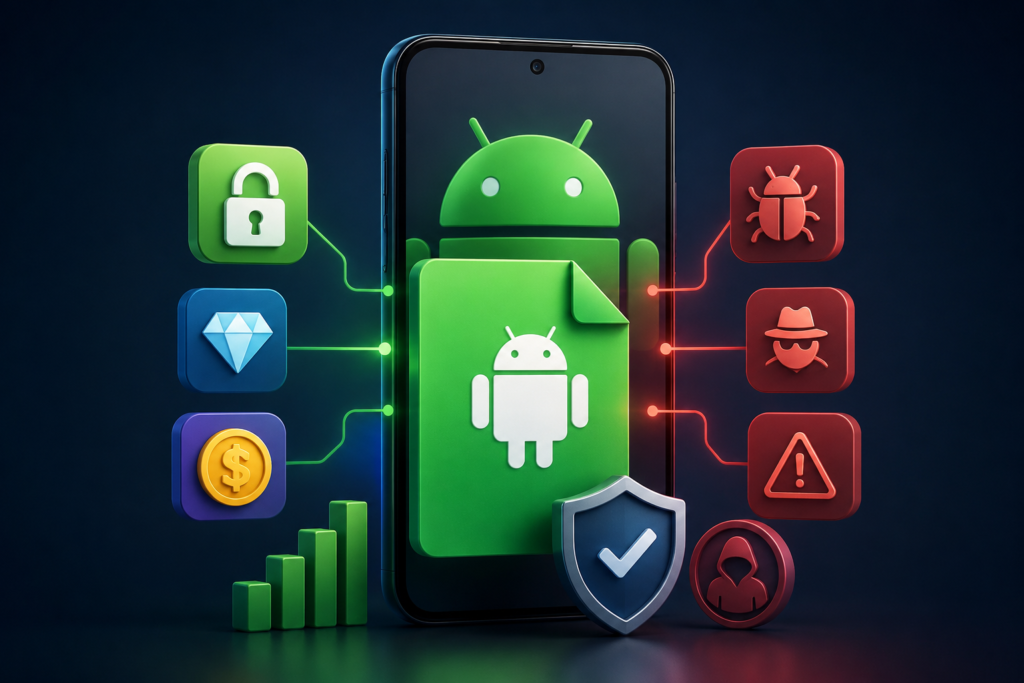
A “fake app detector” is not a guarantee that every app on your phone is genuine. On Android devices with Google Play, start with Play Protect, then check whether a suspicious app actually belongs to the company it claims to represent.
If your concern is a phone showing inflated RAM or storage specifications, that is a different problem. Fake Device Test checks device specifications; it should not be presented as a scanner that identifies every malicious banking, messaging or shopping app.
Start with Google Play Protect
Google’s Play Protect help explains that it checks apps for potentially harmful behaviour, including apps from outside Google Play. It can warn about, disable or remove detected harmful software.
- Open Google Play Store and tap your profile icon.
- Open Play Protect and review the scan status or any warning shown.
- Open its settings and keep Scan apps with Play Protect enabled.
- If considering Improve harmful app detection, read the explanation: it permits unknown apps to be sent to Google for analysis.
A result without a warning is useful information, not proof of a company’s identity or a promise that no future problem is possible. Do not turn off protection simply because a download page tells you to bypass a warning.
Check whether an app is the genuine product
- Start at the company’s official website. Follow its app-store link instead of an unsolicited message or an imitation download button.
- Compare the developer and product details. A familiar logo or similar name alone is weak evidence. Check the developer website, support information and the service described.
- Read permission requests in context. Ask why the stated feature needs SMS, screen-reading, notification or contact access before granting it.
- Do not use a star rating as a security certificate. Popularity does not establish that an app is the one you intended to install.
These are checks to reduce uncertainty, not a method for proving fraud from one spelling mistake, a low download count or a crash. A legitimate app can also contain bugs or have limited device compatibility.
What Fake Device Test actually checks
Fake Device Test by Appsolutely Unique has an official Google Play listing. Its advertised purpose is checking potentially inflated device specifications and testing SD cards. The listing says its SD-card test does not support OTG flash drives and that the app contains ads.
Use its results as diagnostic information to discuss with the developer, seller or manufacturer. A failed installation or an unexpected result does not, on its own, prove that a seller committed fraud. This guide has not independently tested its accuracy.
How to Uninstall a Suspicious App
Follow Google’s Android malware-removal guidance: keep protection enabled, install available system/security updates, remove apps you do not trust, and review your Google Account security. In Settings, open the relevant app’s information page and use Uninstall when available.
If you entered account credentials into an imitation service, contact the genuine service through its official website and secure the affected account. Seek device-manufacturer support if the app cannot be removed or symptoms persist. Do not reset a phone without first considering the data that would be erased.
Report a suspicious listing
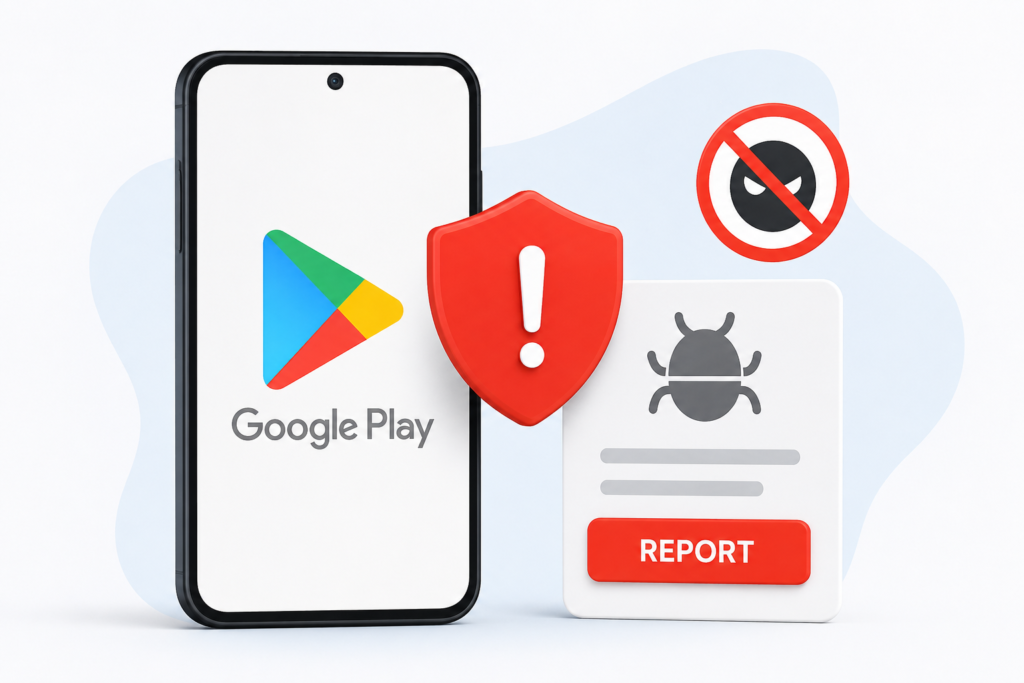
Google’s reporting instructions say to open the app’s Play Store page, choose More → Flag as inappropriate, select the relevant reason and submit. Include a factual explanation. Reporting requests a review; it does not guarantee immediate removal.
For more detail, see our guide to reporting unsafe apps on Google Play.
Frequently Asked Questions
Does a clean scan prove an app is official?
No. A scan checks for detected harmful behaviour. Check the company’s own website and developer details separately to confirm which app it publishes.
Does Fake Device Test scan banking apps?
Its stated purpose is testing device specifications and SD cards. It is not a substitute for checking the identity of a banking app or responding to a Play Protect warning.
More Articles You May Like