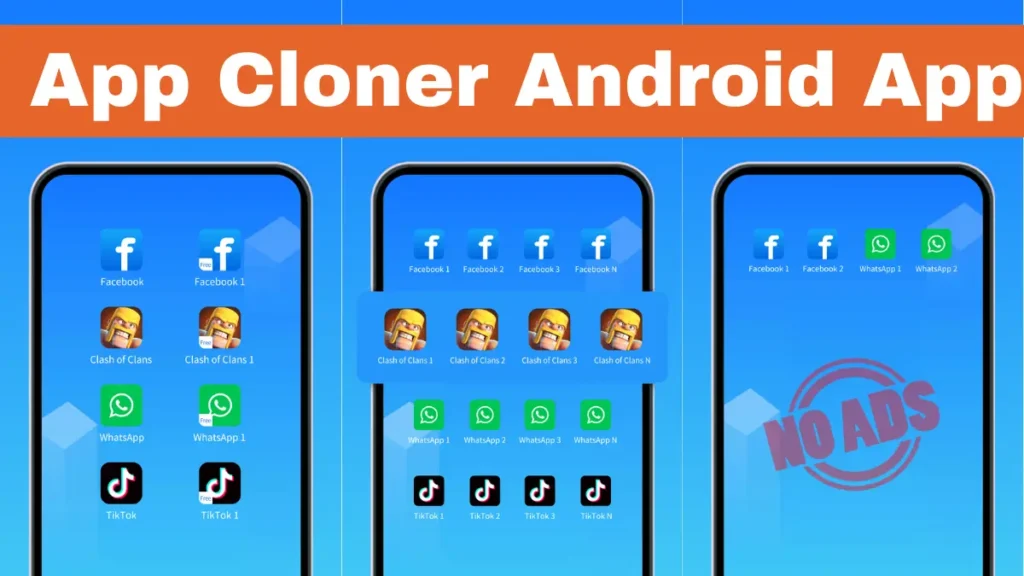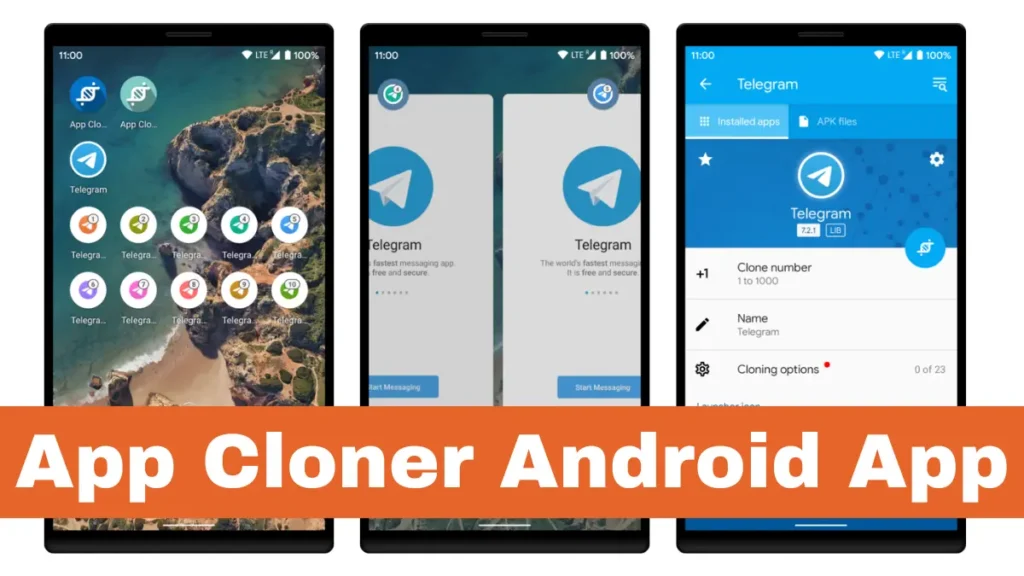
App Cloner Premium & Add-ons does not clone apps by itself. The Google Play app by AppListo is a companion for purchasing the main App Cloner product’s premium subscription, add-ons, packages and extensions. Installing this companion alone does not give you a screen for duplicating an app.
This distinction matters before you spend money. The earlier Install button on this page incorrectly led to an unrelated text-recognition app; the correct link is now provided below.
Which app do you need?
App Cloner Premium & Add-ons on Google Play handles purchases. The developer’s product overview describes the main cloning tool separately. The Play Store companion linked here is only the purchase app. Similar names in search results do not establish that another app comes from AppListo.
If you only want to switch between accounts, first check whether the original app already supports that task. A built-in account switcher can avoid maintaining a separate modified copy.
What does a purchase unlock?
The developer describes premium features and additional packages separately. Its overview distinguishes a premium subscription, recurring add-ons and packages or editions sold on different terms. Some extras depend on an active premium subscription; do not assume one payment includes every feature.
- Identify the exact option you need before choosing a package.
- Check whether the item is a subscription or a one-time purchase, its renewal period and the price shown for your account.
- Check whether that item requires another purchase.
- Keep the purchase confirmation and use the developer’s support channel if the entitlement does not appear.
Prices and available bundles can change. This guide deliberately does not repeat an old price or describe paid features as automatically included with a free download.
Will every cloned app work?
No. The developer warns that changing an app’s signing certificate can break certificate-dependent features, including some Google sign-ins, Play services integrations and purchases. An app can also reject modified copies or stop working after an update.
Treat successful installation and successful use as separate checks. Before relying on a clone, verify the specific functions you need, such as login and notifications. Do not remove the original app or its data just because a copy has appeared on the home screen.
Creating and maintaining a clone
In the main tool, the developer’s overview describes choosing an installed app, adjusting the available clone settings and starting the cloning process. Follow its current instructions and read any compatibility warning. This is not a workflow available inside the Play Store purchase companion.
The developer also says clones do not automatically update when their original apps receive Play Store updates. They need their own update process. Uninstalling a clone can erase its local data, so understand the documented update and backup options before changing an existing setup.
Privacy settings are not a blanket guarantee
A renamed icon or separate app copy does not establish anonymity or prove that the app stops collecting information. Decide what data to enter and review the permissions of the resulting app. This article does not independently validate every privacy or modification option.
How to Uninstall the Companion or a Clone
Save any files or local data you need from a clone before removing it. In Settings → Apps, carefully select either the App Cloner Premium & Add-ons companion or the particular cloned app, then choose Uninstall. Check the name so you do not remove the original app by mistake.
Cancel unwanted Google Play subscriptions separately in Google Play subscriptions. Removing the companion is not a subscription cancellation, and it should not be treated as a way to back up or remove every clone.
Official help and review scope
Use the developer’s App Cloner overview for current workflows or contact support@appcloner.app for product support. This is a documentation-based explanation, not a hands-on compatibility test or a Google endorsement.