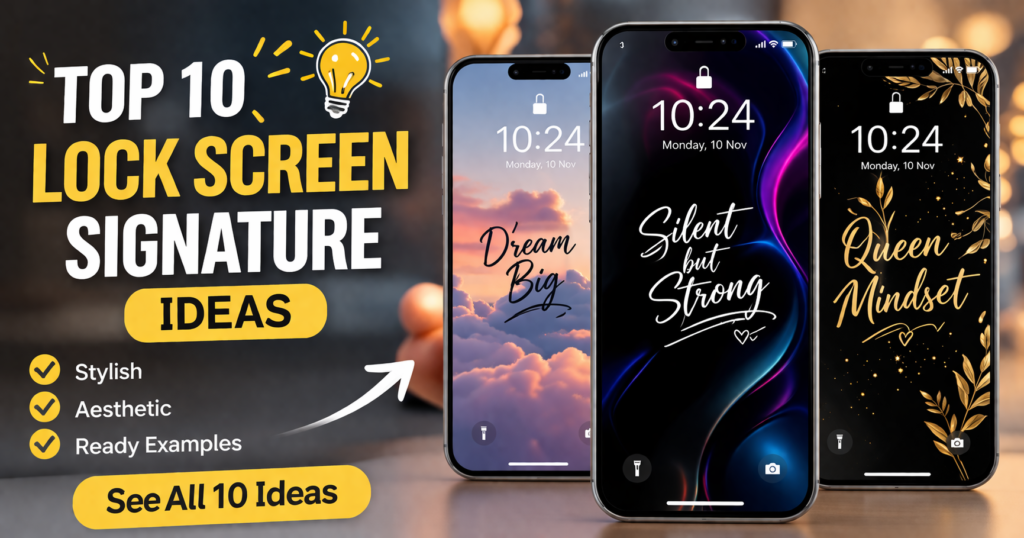
A lock screen signature is a short phrase, nickname or decorative name displayed on your phone’s lock screen. You can keep it minimal with initials, use a motivational line, or create a matching design with someone close to you.
Below are 10 lock screen signature ideas with visual examples. Choose a style you like, then follow the Android or iPhone instructions to add it to your own screen.
These signatures are decorative text—not a handwritten password or a gesture used to unlock your phone.
10 Lock Screen Signature Ideas With Image Examples
Below are 10 lock screen signature ideas with simple image example descriptions so readers can easily create the same style on their phone.
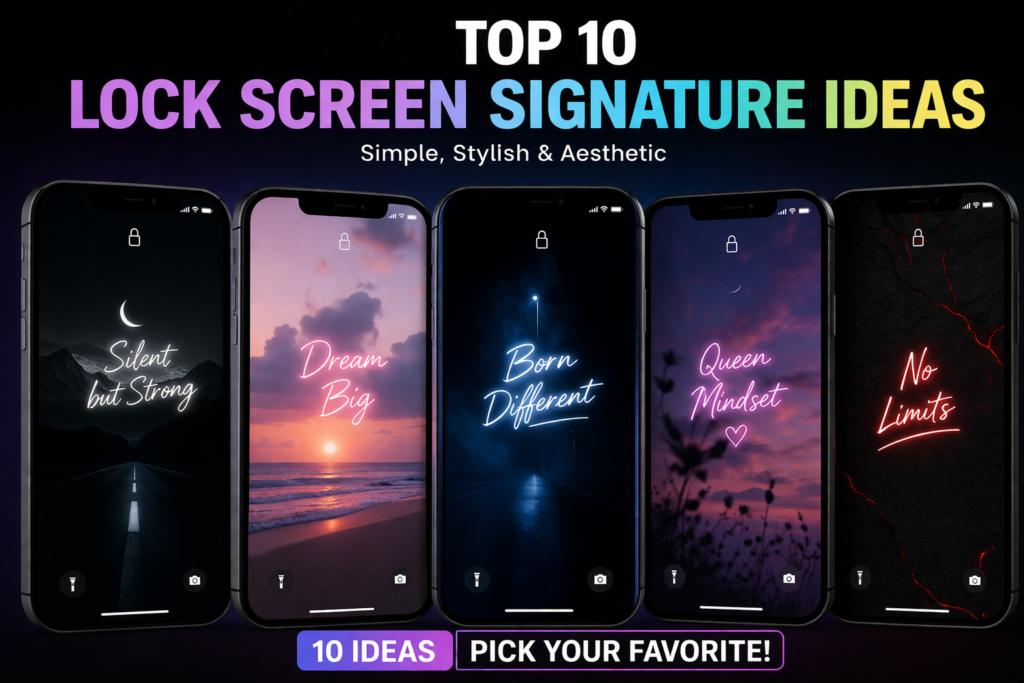
Table of Contents
1. Silent but Strong
A simple and powerful lock screen signature for people who do not talk much but stay confident.
Image idea: A black mobile frame with a dark city-light wallpaper and the words “Silent but Strong” glowing softly in the center.
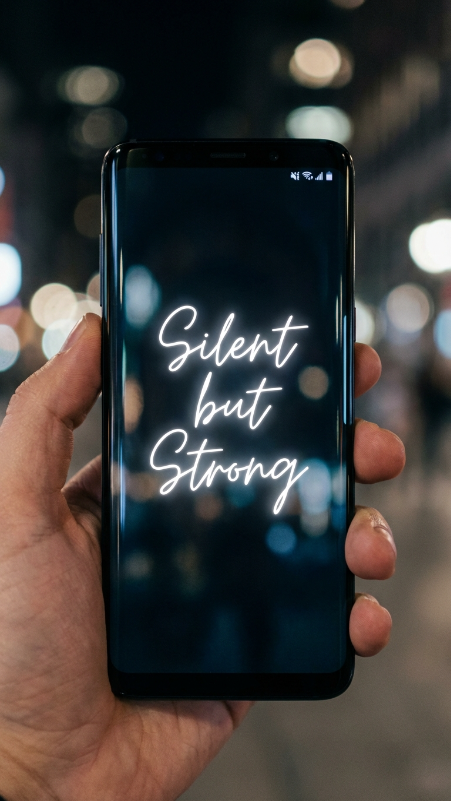
Best for: Boys, attitude style, dark lock screens.
2. Dream Big
This short signature pairs well with a clean, motivational design.
Image idea: A white or silver phone frame with a sunrise wallpaper and stylish cursive text saying “Dream Big”.
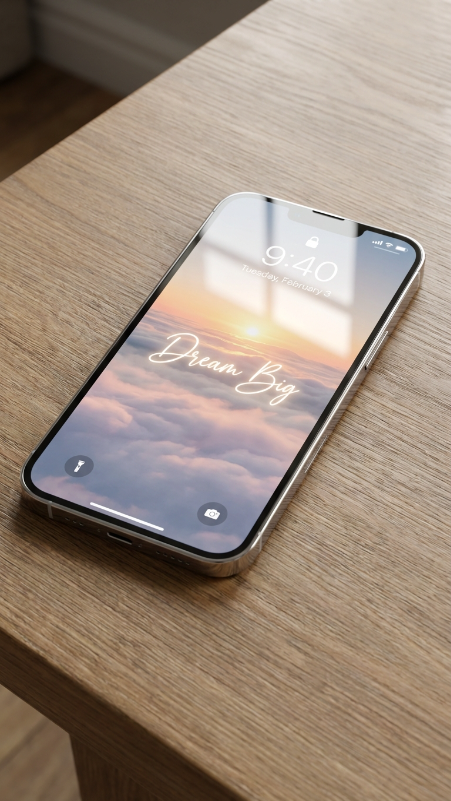
Best for: Students, simple lock screens, positive style.
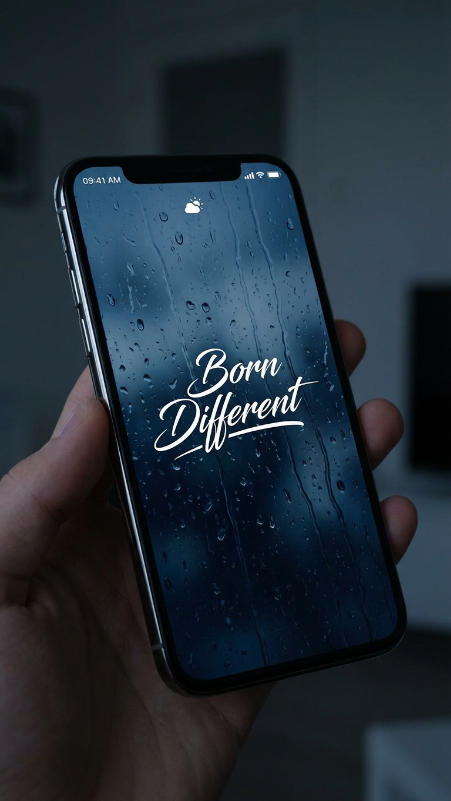
3. Born Different
If you want your lock screen to show confidence and uniqueness, this signature is a good choice.
Image idea: A dark blue wallpaper with rain effect inside the phone and bold text in the middle reading “Born Different”.
Best for: Attitude lock screen lovers.
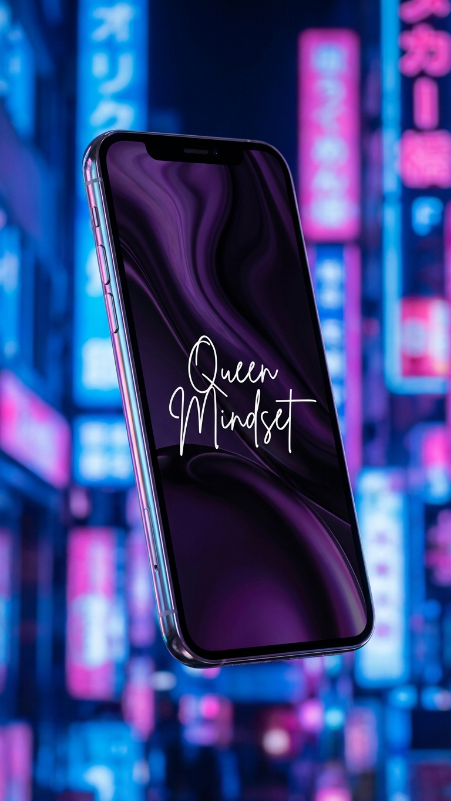
4. Queen Mindset
This is a stylish lock screen signature idea for girls who want an elegant and confident look.
Image idea: A pink and purple lock screen background with “Queen Mindset” written in a glowing stylish font.
Best for: Girls, aesthetic phone themes.
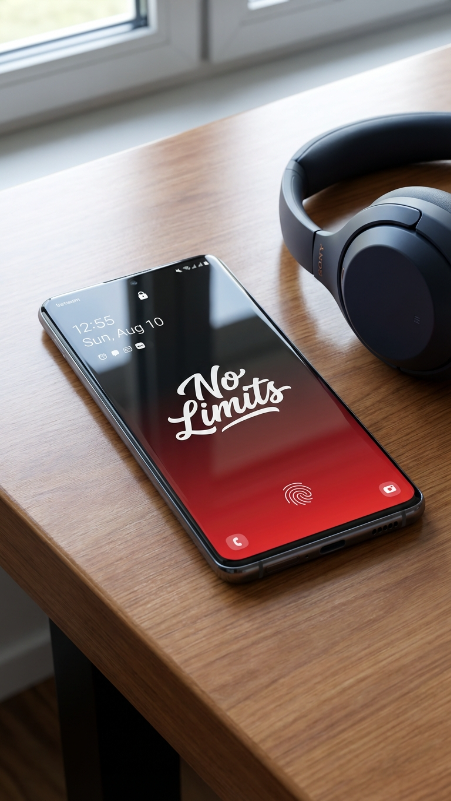
5. No Limits
“No Limits” is a short and modern lock screen signature that looks good on almost any wallpaper.
Image idea: A black-and-red wallpaper inside a modern phone frame with bold white text saying “No Limits”.
Best for: Android users, sports and motivation themes.
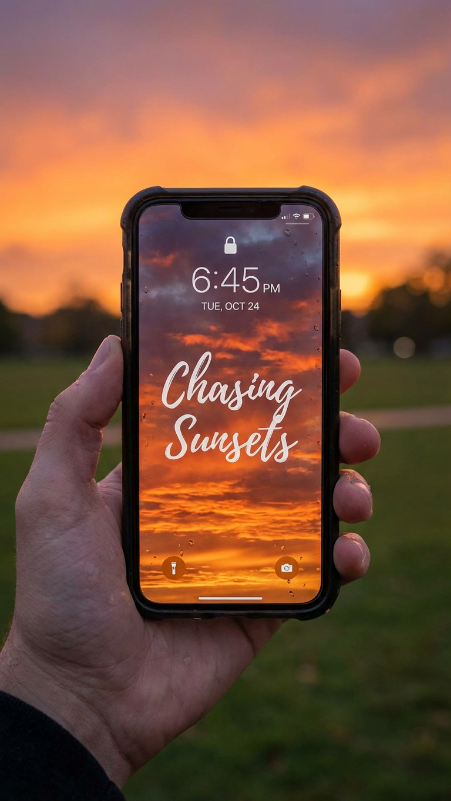
6. Chasing Sunsets
This is a soft and aesthetic lock screen signature idea. It looks especially good with sunset or nature wallpapers.
Image idea: A phone held outdoors with an orange sunset wallpaper and the words “Chasing Sunsets” in elegant handwriting.
Best for: Aesthetic lock screen designs.
7. Midnight Soul
If you like dark and calm lock screen themes, “Midnight Soul” is a perfect signature.
Image idea: A black phone with a moon-and-stars wallpaper and glowing white text in the center.
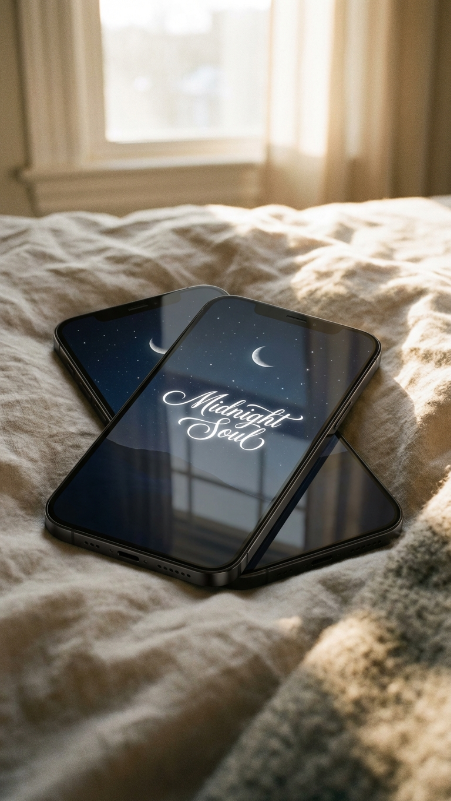
Best for: Night-style lock screens and minimal themes.
8. His Queen / Her King
This is one of the best couple lock screen signature ideas. Use one text on your phone and the other on your partner’s phone.
Image idea: Two phones side by side. One phone says “His Queen” and the other says “Her King”.
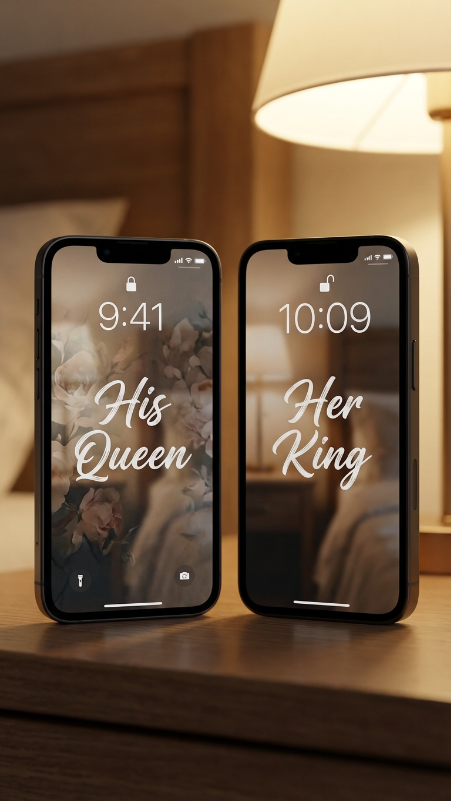
Best for: Couples and matching lock screens.
9. Sweet but Strong
This lock screen signature idea is simple, stylish, and perfect for people who want a soft but confident look.
Image idea: A light pink wallpaper with white cursive text reading “Sweet but Strong”.
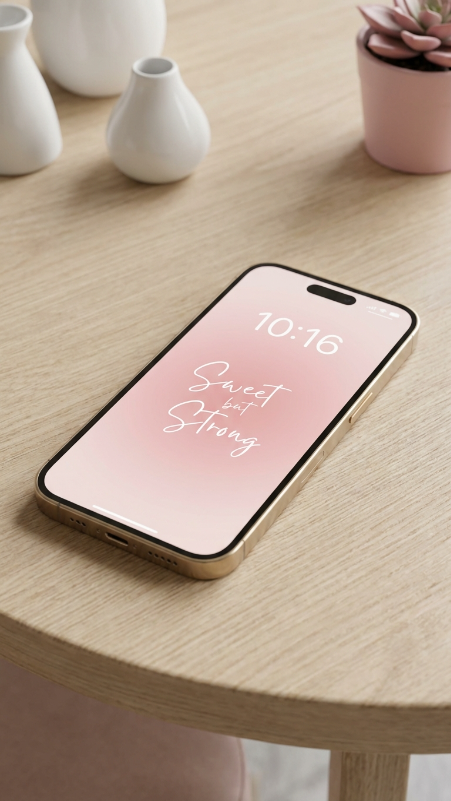
Best for: Girls and soft aesthetic themes.
10. Neon Signature Style
If you want something more eye-catching, use a glowing neon-style signature.
Image idea: A purple and black lock screen wallpaper with the glowing signature “Jithu” in the center.
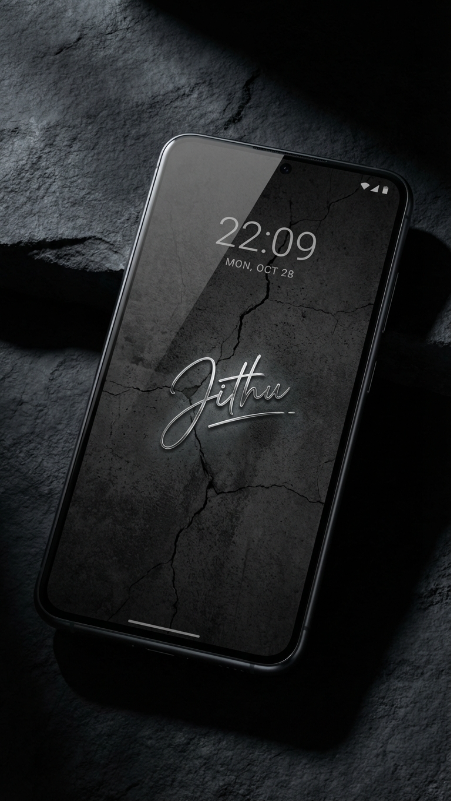
Best for: Modern and stylish phone themes.
How to Add a Lock Screen Signature on Android
Your options depend on your phone brand and Android version. Some phones include a lock screen text feature. You can also add your signature to a wallpaper image.
Option 1: Use Your Phone’s Lock Screen Text Setting
Search your phone’s Settings for “lock screen text,” “lock screen message” or “owner information.”
For the current Pixel route, touch and hold an empty area of the home screen, open Wallpaper & style, swipe to Lock screen, then open More lock screen settings and Add text on lock screen. Google documents this in its Pixel lock screen guide. Enter your phrase, save it and check the locked screen. Menu placement can differ on older versions.
Other Android phones may use different menu names or may not offer this feature. Built-in text settings may also limit your choice of font, colour and placement.
Option 2: Add Text to a Wallpaper
For more control over the design:
- Open your chosen background in an image editor that supports text.
- Add a nickname, initials or a short phrase.
- Choose a readable font and a colour that stands out from the background.
- Leave room for the clock, notifications and unlock controls.
- Save the finished image to your phone.
- Select it in your phone’s wallpaper settings and apply it to the lock screen.
Preview the wallpaper before saving. If the phone crops your words, move the text farther from the edges and export the image again.
How to Add a Signature to an iPhone Lock Screen
One practical way to display a custom phrase is to include it in the wallpaper image itself. Apple’s wallpaper instructions confirm the Settings → Wallpaper → Add New Wallpaper route used below.
- Use an image editor to place your chosen text on a photo or background.
- Save the finished design to Photos.
- Open Settings, select Wallpaper and tap Add New Wallpaper.
- Choose Photos and select your edited image.
- Adjust the crop so the text stays visible around the clock and widgets.
- Tap Add and finish choosing your wallpaper settings.
The signature becomes part of the image. To change its wording later, edit the original design and set the new image as your wallpaper.
Tips for a Clear, Readable Signature
- Keep your phrase short enough to read at a glance.
- Use a simple font for small text.
- Place light text on a dark area, or dark text on a light area.
- Keep important words away from the screen edges.
- Check the design with notifications visible.
- Use a nickname or decorative initials rather than a copy of your legal signature.
You do not need to include your full name, birth date or home address to make a wallpaper personal.
Frequently Asked Questions
What is a lock screen signature?
In this guide, it means decorative text such as a name, initials or a short quote shown on a phone’s lock screen. It does not unlock or secure the phone.
Can I add one without installing a lock screen app?
Yes. If your phone has a built-in lock screen text setting, you can use that. Alternatively, create an image with your chosen text and set it as your wallpaper.
Why does my signature get cut off?
The wallpaper may be enlarged or cropped to fit the screen. Move the text closer to the centre of your design, leave wider margins and check the wallpaper preview again.
Can I use Tamil text?
Yes, if your image editor and selected font support Tamil. Check that every character displays correctly before saving the wallpaper.
Does a signature wallpaper replace my PIN or Face ID?
No. It only changes the appearance of your lock screen. Keep your normal screen-lock protection enabled.
Final Thoughts
The best lock screen signature idea depends on your style. If you like attitude themes, try “Silent but Strong” or “Fearless”. If you want a soft and aesthetic lock screen, “Dream Big”, “Queen Mindset”, or “Chasing Sunsets” are better choices.
You can also create matching lock screen signatures with your partner by using “His Queen” and “Her King”.
Try different wallpapers, fonts, and colors until your lock screen feels personal and unique.
More Articles You May Like