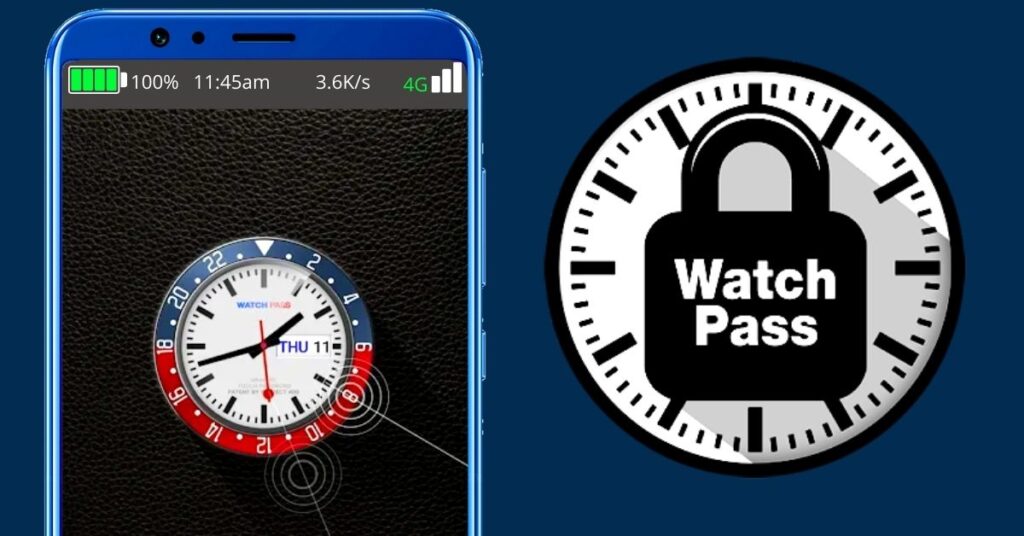
A time lock screen uses the current clock time, or a combination of time and a private PIN, as an unlock code. The Android app linked in this guide is AppLock – Time Password by Adria Devs, which focuses on locking selected apps.
Before installing, understand the main limitation: the current time is public information. A code that changes every minute is not automatically a strong password. Keep your phone’s built-in screen lock enabled.
How Does a Time Password Work?
For a simple clock-based code, 08:45 becomes 0845. When the clock reaches 08:46, the code becomes 0846. A person who knows this rule can work out the next code too. Reversing the digits changes the rule but does not make the clock itself secret.
A private PIN combined with the time adds information that another person would need to know. However, that does not establish that an app is more secure than Android’s native lock. Protection also depends on how the app works and whether its lock remains active.
App Details and Official Download
| App | AppLock – Time Password |
|---|---|
| Developer | Adria Devs |
| Platform | Android |
| Purchases | Contains ads and in-app purchases |
Check AppLock – Time Password on Google Play
The developer advertises time/PIN combinations, reverse PIN, fingerprint support, break-in alerts and a photo/video vault. Availability and behavior can depend on your device. These are listed features, not results from our own device testing.
How to Set Up and Check an App Lock
- Keep your existing Android PIN or password. Make sure you can still use it before trying another lock app.
- Open the official listing and confirm the app name and developer. Check compatibility before installing.
- Read each permission request and its purpose. If an explanation is unclear, pause rather than granting everything automatically.
- Choose an available lock method. Check the time format and the exact order of any private PIN and clock digits.
- Start with one non-sensitive app. Open it, close it and reopen it to check when the lock appears.
- Learn the available recovery and disable options before locking important apps. Test again after restarting your phone.
If the lock behaves inconsistently, do not rely on it for private information. Check the developer’s help for your phone model. Keep a separate backup of important files while evaluating the app.
Permissions, Privacy and Vault Files
The developer’s privacy policy describes third-party advertising/analytics services and diagnostic information. A store listing alone does not guarantee privacy. Review the policy alongside the permission prompts shown on your phone.
Before uninstalling: the developer warns that personal files should be restored from its vault first. Confirm that restored photos and videos open outside the app and that your backup works before removing it.
Does This Work as an iPhone Time Lock?
The previously linked One-Time Password app by NTT DATA generates login codes for participating services after enrollment. It is not described as an iPhone screen-lock replacement. Authentication codes and clock-based app locks serve different purposes.
For iPhone protection, use Apple’s built-in passcode settings. Follow the official iPhone passcode guide to choose or change your code.
What Should Protect My Phone?
Use a private native screen-lock PIN or password as your main protection. Google recommends at least six PIN digits for added security and describes a strong password as the most secure screen-lock option. An extra app lock should not be a reason to weaken that protection.
App details checked on 13 October 2026. Read our app article disclaimer for information about third-party app guides.