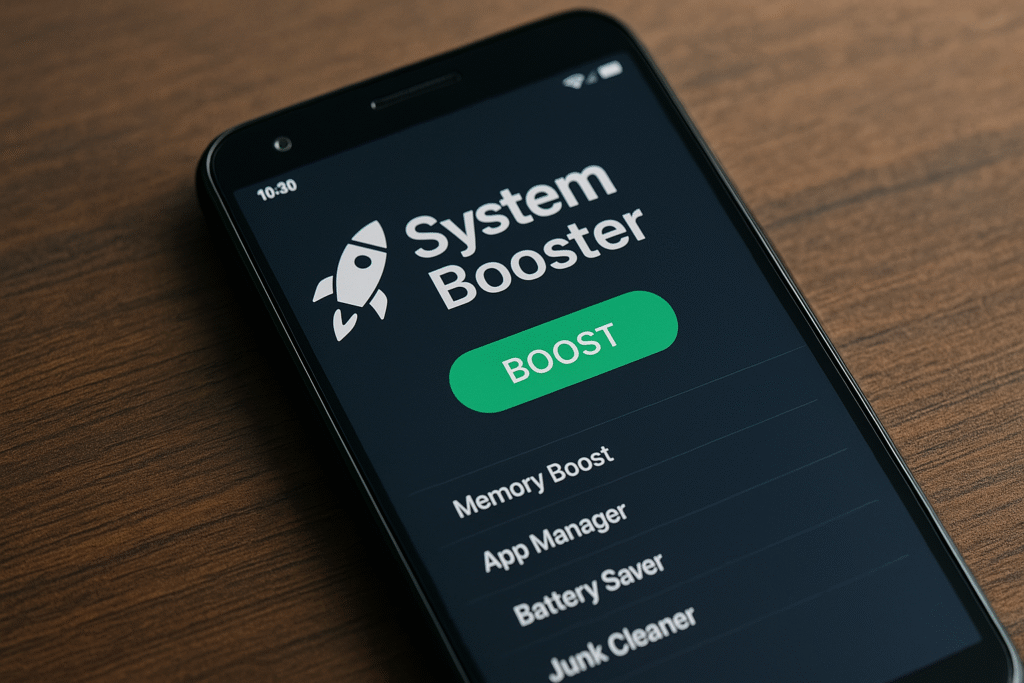
A system booster on Android is usually marketed as a way to clear memory, remove unwanted files or make a slow phone faster. Those are different tasks, and a large “boost” percentage does not prove that your phone now performs better. Before installing another utility, identify whether your problem is low storage, one misbehaving app, slow internet or something affecting the whole device.
Android already manages application memory. A useful maintenance action should solve a specific problem you can observe: enough storage to save a photograph, an app that opens reliably, or a download that completes. A dashboard animation is not a substitute for those results. Avoid giving an unidentified booster broad access simply because it displays an urgent warning.
This guide explains what Google documents about background processes and gives a practical troubleshooting order. It does not identify one official product called “System Booster APK,” recommend a modified installer, or promise a fixed speed improvement. Start with the phone’s settings, preserve important files and change one thing at a time so that you can tell what actually helped.
Source review: 18 October 2026. Android settings vary by manufacturer.
| Problem | First check |
|---|---|
| Only websites or streaming are slow | Compare the network connection |
| Only one app freezes | Check that app and its updates |
| Cannot save or install files | Review available storage |
| Several apps are slow | Restart, update and investigate recent changes |
What RAM booster claims leave out
Google’s Android developer guidance explains that the system retains cached apps and removes processes when memory is needed. Unnecessary process killing can increase later restart work and battery use. Starting with Android 14, the killBackgroundProcesses API can terminate only the calling app’s own background processes.
The same guidance rejects claims that a third-party application can improve the device’s underlying memory, power or thermal behavior. A utility may help you review files or open settings, but that is different from adding physical RAM or repairing hardware. Read the official Android background-process explanation.
Our practical recommendation is to compare a real task before and after any change. For example, open the same local document or switch between the same two apps. Keep the test conditions similar. A different connection or a newly finished download can otherwise make an unrelated change appear responsible.
Start with the built-in troubleshooting steps
- Restart the phone and check whether the problem returns.
- Check available Android and app updates.
- Review free storage in Settings.
- Notice whether the issue affects one app, online services or the whole phone.
Google’s slow-device guide says problems can start when less than 10% of storage is free. It also recommends safe mode to help identify whether a downloaded app is responsible. Use the manufacturer’s instructions for entering and leaving safe mode.
Write down what you observed before installing anything else. Include when the slowdown started, whether it follows a recent installation and which task is affected. This makes a later support request more useful than simply reporting that the phone feels slow.
Free storage without deleting important data
Google distinguishes storage used for files from memory used to run programs. Clearing an app’s cache removes temporary data; clearing its storage permanently deletes that app’s data. These buttons should not be treated as interchangeable. Review Google’s storage-cleanup instructions before using them.
Begin with material you can identify: an old installer, a downloaded video you no longer need or an app you have decided to remove. Preview files before deleting them. Avoid approving a large “junk” selection when you do not understand the categories included.
For an important document or photo, open its backup before removing the local copy. Check that the backup contains the full file, not just a thumbnail. If an app stores unsynced notes, drafts or recordings, export those first. A cleanup tool’s label does not establish that a file is disposable.
If only one app is slow
Try the same task in that app after checking for an update. Note whether it fails at launch, during sign-in or when loading online content. If other apps work normally, focus your investigation on the affected app before changing system-wide settings.
Do not erase app data just to test a guess. First confirm your login and recovery options and whether the app has anything stored only on the device. If you need the developer’s help, provide the app version, phone model and a description of the failed step without sharing passwords or private files.
How to judge a cleaner or booster
Ask what specific action the utility performs. Does it show files for your review? Does it merely link to Android settings? What permissions does it request, and what happens if you decline them? Prefer an understandable action with a visible result over an unexplained “maximum performance” promise.
Android provides per-app permission controls. Google explains how to review them under Settings → Apps → the app → Permissions in its permission guide. Match access to the task rather than accepting every request automatically.
Do not use a cleaner’s score as evidence that your phone contains malware. Do not disable built-in protection or install a different unknown APK in response to an alarming advertisement. If you cannot identify the publisher and the function, leave that utility out of the troubleshooting process.
How to uninstall a booster
Open the unwanted app’s App info page and select Uninstall where available. If you granted additional access, review the corresponding Android settings. Follow the phone’s own prompts if removal requires an extra step; do not remove unrelated system components.
Check billing separately. Uninstalling an app does not cancel a Google Play subscription. Use Google Play’s subscription controls for Play-billed purchases, or the original provider for subscriptions bought elsewhere. Keep any cancellation confirmation.
Frequently asked questions
Does a booster add real RAM?
No. Do not interpret a cleaner’s memory figure as a hardware upgrade. Evaluate whether the task you care about actually improved.
Should I keep clearing every background app?
Routine process killing is not the troubleshooting approach recommended in Android’s developer guidance. Investigate the specific slowdown instead.
Should I factory-reset immediately?
Start with reversible checks. A reset is a consequential step that requires a verified backup and the manufacturer’s instructions.
Editorial and update policy
Reviewed by M Raj for App TN using the official Google and Android references linked above. This system booster guide explains documented limits and practical checks; it is not a benchmark of an unnamed app. We update it when official behavior or troubleshooting instructions change. No APK mirrors or guaranteed speed gains are offered.
More Articles You May Like