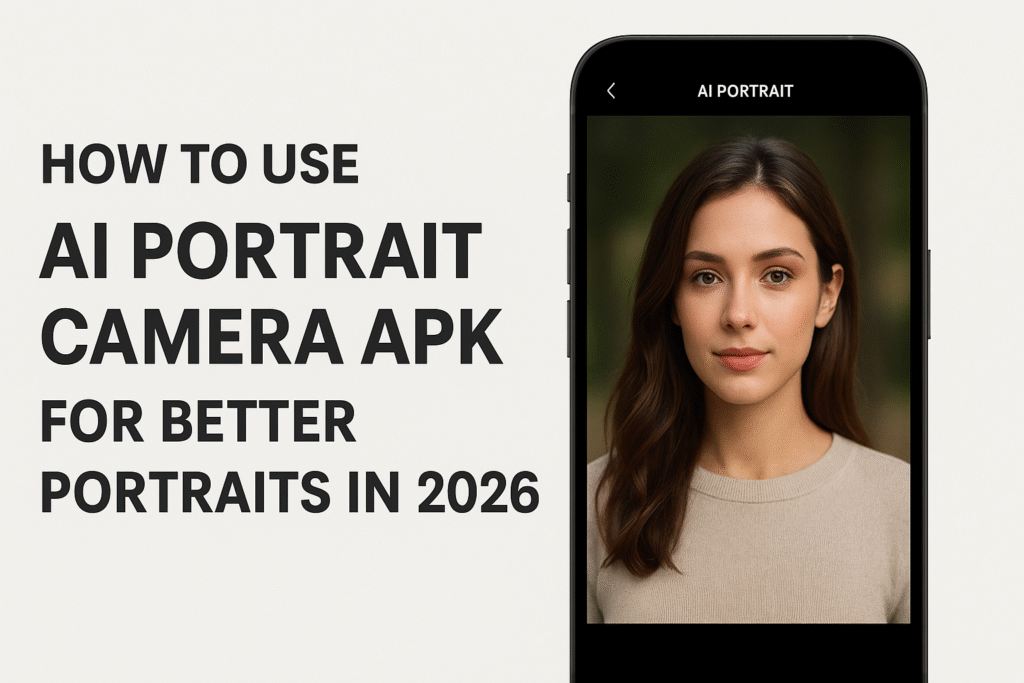
AI portrait camera is a broad description, not the verified name of one Android app. It can mean a phone’s portrait mode, an editor that blurs a background, or a service that generates a new image from an uploaded face. These tools have different purposes, costs and privacy requirements. Before downloading anything, identify which result you actually want.
For a natural profile picture, begin with a well-lit original and modest edits. You may not need a separate camera app at all. For a stylized illustration or imagined studio scene, a generative service may be more suitable, but its output should not be treated as an untouched photograph. An attractive preview is also not proof that the exported image will be sharp or free of watermarks.
This guide gives you a practical way to compare those options, try an existing editor and check the saved result. It does not endorse an unidentified “AI Portrait Camera APK,” promise professional results on every phone, or claim that we tested a specific unnamed app. App TN’s recommendations focus on retaining your original, checking the person’s likeness and understanding what happens to uploaded photos.
Source review: 18 October 2026.
| Your goal | Start with |
|---|---|
| Take a new photo with background separation | Your phone’s available portrait mode |
| Improve an existing photograph | A photo editor with the required adjustment |
| Create a different outfit or imagined scene | A clearly identified generative image service |
| Make an official application photo | The issuing authority’s photo requirements |
Portrait blur, retouching and generation are different
Background blur changes how the area behind a person looks. Retouching can alter skin texture, lighting or facial appearance. Generation can introduce details that were never in the original scene. Do not judge these as the same feature simply because each is advertised with “AI.”
For a personal profile image, compare the result with the person you photographed. Look for changed face shape, skin tone, glasses and hair. If recognizability matters, reject an edit that produces a more polished but less faithful face. For documentary or news use, preserve the original and disclose material alterations.
Start with a better original photo
- Clean the camera lens and use soft light, such as indirect daylight.
- Choose a simple background with some distance behind the person.
- Keep the camera steady and check focus before taking several frames.
- Compare the originals before choosing one to edit.
These are practical photography suggestions rather than promises about a particular app. Strong sharpening cannot be relied on to restore detail that the camera never captured. If the face is badly blurred, taking another photograph is often a better starting point than repeatedly increasing an effect.
Try available tools in Google Photos
Google’s official guide documents portrait-related editing, including portrait blur and light adjustments. Available tools depend on the device and feature requirements; some are Pixel-specific. Missing controls do not establish that your phone is faulty.
- Open the intended picture in Google Photos and tap Edit.
- Inspect the available tools or use the editor’s Search to find a named adjustment.
- Apply a small change, then compare the preview with the original.
- Use Save as copy when you want an edited image alongside the unchanged original.
Google distinguishes saving edits to the original from saving a separate copy. Some tools need an additional download and sufficient storage. Check the current Google Photos editing instructions for your device rather than expecting every demonstrated feature to appear.
Check edges before exporting
Inspect hair, ears, spectacle frames, fingers and the space between an arm and the body. A blurred halo or a cut-out edge can make an otherwise good portrait look artificial. Reduce the effect if the tool includes an intensity control. Compare at normal viewing size as well as zoomed in.
Then inspect the actual saved file outside the editor. Check its dimensions, orientation, crop and watermark. Send a test to yourself through the sharing method you intend to use and inspect that delivered version. Keep the original until you are happy with the exported result.
A useful comparison is to edit the same sample in two tools with similar settings. Compare the saved images, the time spent and the total price. Do not compare one app’s preview against another app’s compressed export.
Photo access and privacy checks
Before uploading a face, read the provider’s explanation of storage, deletion and image use. Ask whether processing occurs on the device or on a server. If the answer is unclear, avoid uploading sensitive photographs. Obtain permission before using someone else’s portrait, especially for public sharing.
Android lets you review permissions under Settings → Apps → the app → Permissions. Camera, microphone, photos and other permissions serve different purposes. Review what is requested against the feature you are using. See Google’s app-permission guidance; menu names can vary.
For a simple still-photo edit, question requests that appear unrelated to that task. A permission explanation should be understandable without guessing. Grant the narrowest suitable access offered and revisit it after your project is finished.
Costs and how to uninstall
Before starting a trial, check the renewal amount, billing period, export limits and watermark conditions. Save any finished photographs you want to keep before removing the editor. Check the provider’s separate account or uploaded-photo deletion controls if you used its cloud service.
For a removable Android editor, open its App info screen and choose Uninstall. Preinstalled apps may instead offer Disable. If you subscribed through Google Play, manage the subscription separately: uninstalling does not cancel it. Google provides subscription cancellation instructions. Purchases through another provider must be managed with that provider.
Frequently asked questions
Is there one official AI Portrait Camera APK?
This search phrase alone does not identify a verified product. Check the exact app name, publisher and official listing before choosing a download.
Will AI make every photo look natural?
No. Judge your own exported sample, especially skin texture and subject edges. Keep the unedited version for comparison.
Can I use an edited portrait for an ID application?
Follow that application’s specific photo rules. Do not assume an AI-generated or heavily retouched image will be accepted.
Editorial and update policy
Reviewed by M Raj for App TN using the official sources linked above. We update this AI portrait camera guide when documented editing, permission or subscription steps change. This is informational guidance, not a hands-on review of an unidentified app. We provide no APK mirrors or guaranteed image-quality claims.
More Articles You May Like