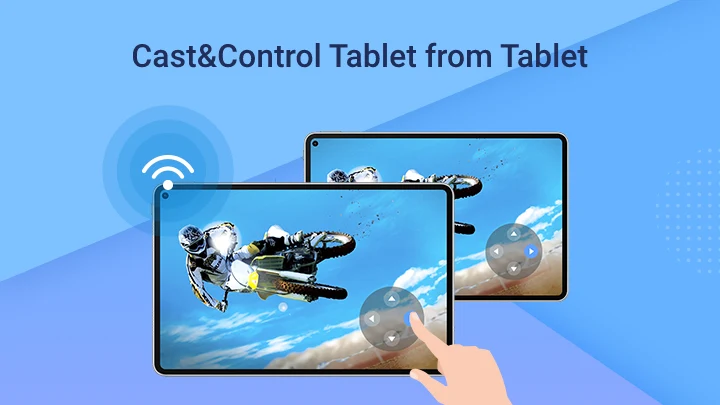
Screen share for Android lets you show your phone’s display on another device. The app featured in this guide is ApowerMirror. It can be useful for explaining a phone setting, presenting photos or demonstrating an app to someone who has agreed to join.
Start by deciding where you want to display your screen: another phone, a computer or a compatible TV. The receiving device needs a supported connection method. Installing the Android app alone does not connect every nearby device.
View ApowerMirror on Google Play
Screen Sharing and Remote Control: What Is the Difference?
Screen mirroring shows what is on one device on another screen. Remote control lets a connected user interact with the device, where supported. Viewing a screen does not automatically grant control.
The person sharing must approve the session and any required permissions. This is not a way to access someone’s phone or camera without their knowledge.
ApowerMirror App Details
| App | ApowerMirror- Screen Mirroring |
| Developer on Google Play | WangxuTech |
| Downloads | 10M+ |
| Purchases | In-app purchases; free use has limits |
| Official website | ApowerMirror by Apowersoft |
Listing details checked on 13 October 2026. Availability, device compatibility and plans can change. This guide uses official documentation; it is not a hands-on performance test.
How to Share an Android Screen with Another Phone
- Install ApowerMirror on both compatible Android phones and open it on each.
- Connect both phones to the same trusted Wi-Fi network for local mirroring.
- On the phone whose screen you want to share, choose the mirroring option and select the receiving phone.
- Follow the casting prompt, then review Android’s screen-capture request. Approve it only when you are ready to share.
- Check that the receiving phone displays the intended screen. Finish the session using the app’s disconnect or stop-sharing control.
The developer’s Android guide also describes QR-code pairing. Its illustrated guide was last updated in 2022, so button names and screens may differ in the current app.
Sharing to a Computer or TV
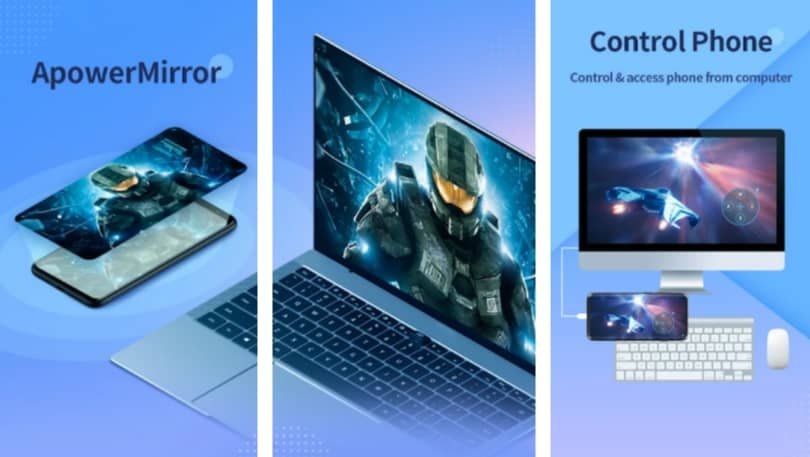
For a computer, get the companion program from the official ApowerMirror website. Follow the guide for your operating system and connection type. For a TV, confirm that the exact model supports the receiving app or casting method; a brand name alone is not enough.
ApowerMirror advertises Wi-Fi and USB mirroring options, supported control functions, screenshots and recording. Which features you can use depends on the devices and plan. AirCast is a separate option for sharing across different networks; check its current requirements and charges.
Permissions and Privacy
The Google Play description says Accessibility access is used for reverse control and that declining it does not prevent other features. Enable it only if you intend to use that control function.
- Close private chats, banking screens and password managers before sharing.
- Hide sensitive notification previews, and check exactly which screen is being captured.
- Keep pairing details private and share only with the intended participant.
- Stop sharing before entering a password, payment detail or verification code.
Read the developer’s privacy policy and the current Play listing before granting access. A download count is not a guarantee of privacy or reliability.
Free Use, Paid Features and Performance
Free use is limited; do not assume unlimited sessions or that every advertised feature is included. Compare the current free, LocalCast and AirCast terms on the official product page. Try your intended connection before buying a plan.
For a lesson or presentation, do a short rehearsal first. Check that the text is readable, the receiving screen is the right way round and any audio you need is actually audible. Do not promise participants a delay-free session.
What to Check if Screen Sharing Does Not Work
- If no device appears, confirm both apps are open on the same Wi-Fi network. Restart the apps and try the documented QR pairing option.
- Guest or workplace Wi-Fi may prevent devices from discovering each other. Ask the network owner about an approved connection.
- If the picture lags, try a lower mirroring resolution and a stronger Wi-Fi connection.
- If a particular video or app cannot be shown, check its sharing restrictions and the developer’s compatibility guidance.
See the official troubleshooting guide. If the issue continues, contact support@apowersoft.com with your device model, app version and the error message. Do not send passwords or private screen recordings.
Related Guide
Want to browse in a small window on your own phone instead of sharing with another device? Read our Float Browser guide.

Veera mathurai
Vivo phone