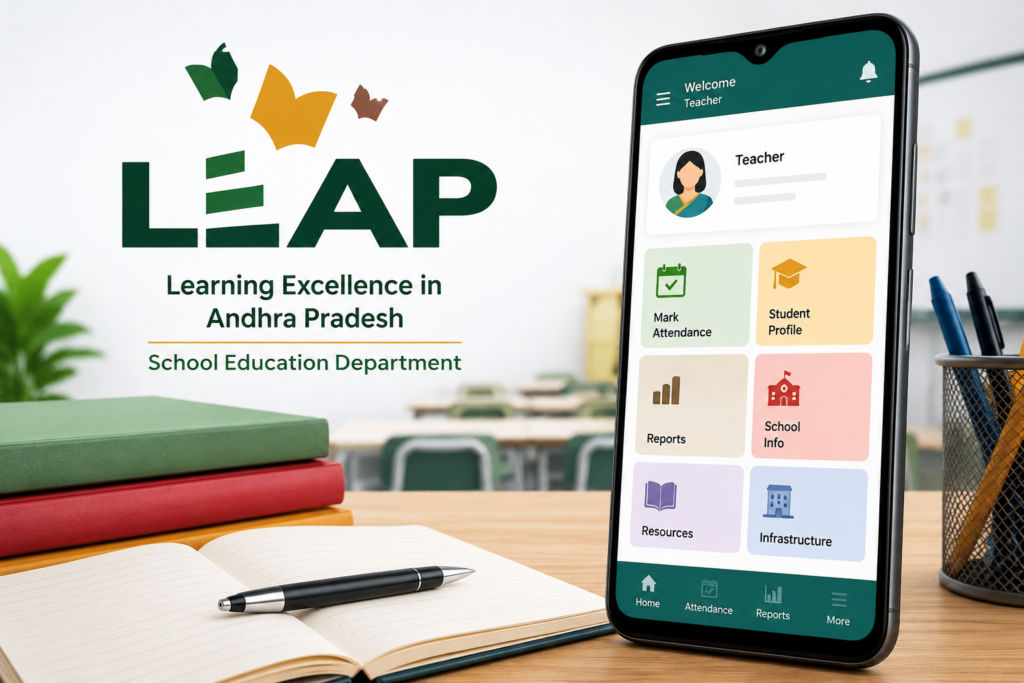
The Andhra Pradesh LEAP app is listed on Google Play by AP SCHOOL EDUCATION, with package com.ap.schoolattendance. Teachers should use the departmental app and the access instructions supplied by their school or education authority. Other apps with “LEAP” in their name are not automatically the same service.
This guide identifies the official listing and provides practical checks for installation and support. It does not replace a departmental attendance circular, specify attendance deadlines or invent a login procedure. Follow the current instructions issued for your role and school.
Official app and purpose
The LEAP Google Play listing expands the name as Learning Excellence in Andhra Pradesh. It describes a School Education Department platform bringing together school, teacher and student information, attendance, resources, fund details, mid-day meal tracking and infrastructure-related functions. These are the department’s stated features; available screens can depend on your assigned access.
An official Alluri Sitharamaraju district education page also identifies LEAP as a tool used to monitor teaching and non-teaching employee attendance. This supports the teacher-attendance purpose, but it is not a step-by-step manual for every account or a statewide attendance-time notification.
Check the identity before installing
Open the official listing above and compare the publisher and package, not only the name or icon. Use the current version offered to your device through that listing. If Play says the app is unavailable or incompatible, save the exact message and ask your authorised support contact; do not substitute a similarly named app or an APK from an unrelated download page.
A government association identifies the service’s context. It is not a reason to describe any software as risk-free or to assume that every requested permission is necessary for every role. Review the actual prompt and the departmental guidance for the task you are completing.
Before your first attendance entry
Confirm with your school which account, school mapping and role you should use. Do not guess credentials from online tutorials or borrow another employee’s login. If an account displays the wrong school or personal details, report the mapping issue before entering records under the wrong identity.
Ask for the current procedure covering attendance submission, confirmation and corrections. In particular, clarify what counts as a successful submission and what to do when a connection fails. This article does not claim that opening the app or taking a screenshot automatically records attendance.
Use only the permissions required by the authorised workflow. If location or another permission is requested and you are unsure why, consult the current departmental instructions. Do not use location-spoofing or other workarounds to make an attendance entry appear valid.
If login or attendance submission fails
Record the exact error, the time it occurred, the app version and your phone’s Android version. Check that you have an internet connection and that the official listing does not offer an update. These are basic troubleshooting checks; they do not prove the cause of a particular failure.
If the issue persists, contact the school administrator or the official support route shown in the listing. Ask how the incident should be recorded under current departmental rules. Avoid repeated submissions when the status is unclear: first check whether the earlier entry was accepted.
Do not clear app data or uninstall as the first response to an unsent record. Ask whether anything still needs synchronising and whether your access can be restored. A troubleshooting action that removes local information can make the original problem harder to document.
What to include in a support request
A useful message identifies the affected function and gives reproducible details: “The attendance submission screen showed this error at this time on this app version.” Include a screenshot only if needed and send it through the authorised channel. Cover student details, passwords and unrelated personal information.
Keep any acknowledgement or reference number. For school mapping, account recovery or corrections to an attendance record, ask the responsible administrator for the approved process. This public guide cannot change official records or confirm that a failed entry will be excused.
Privacy information needs careful reading
At this review, the Play listing’s developer-supplied Data safety section disclosed location collection and displayed “Data isn’t encrypted” and “Data can’t be deleted”. Those labels should not be replaced with an unsupported assurance that the app has strong encryption. They are disclosures shown by the developer, not findings from our own security test.
The listing links a departmental privacy policy, but that page did not load in our source check. We therefore cannot confirm its detailed retention or access terms from that check. Direct privacy questions to the department and consult the current policy when available, especially before sharing information beyond an authorised school workflow.
Who should use this app?
Use this LEAP service when your Andhra Pradesh education authority directs you to it for your role. It is not a general recommendation for every teacher or school in India. The existence of student-related records does not establish that every parent or student can create a public account.
If you are outside the relevant departmental system, identify the attendance platform your institution actually uses. An app with a similar name from another publisher should be evaluated separately, with its own login and support instructions.
How to Uninstall LEAP
If you no longer need the app, first confirm that required submissions are complete and ask your school whether removal affects your duties or future access. Preserve appropriate support references without copying confidential student records into an unrelated backup.
Then open Android Settings → Apps → LEAP → Uninstall, or use Google Play’s app-removal steps. Uninstalling the phone app does not itself delete departmental attendance records or close an institutional account.
Common questions
What does LEAP stand for? The official listing uses Learning Excellence in Andhra Pradesh.
Is this a hands-on attendance tutorial? No. The verified public sources establish the identity and purpose. Exact login screens, submission deadlines and correction procedures must come from current departmental guidance.
Can I use any LEAP app I find? No. Match AP SCHOOL EDUCATION and com.ap.schoolattendance for the Andhra Pradesh service described here.
Reader recommendation: use the official listing, confirm your assigned role and follow the latest school instructions. For failed submissions, preserve the error details and seek an authorised correction rather than improvising a workaround.
More Articles You May Like